
Making use of the User Portal is easy with the new SmartPBX interface.
Begin by logging into your account using the link here.
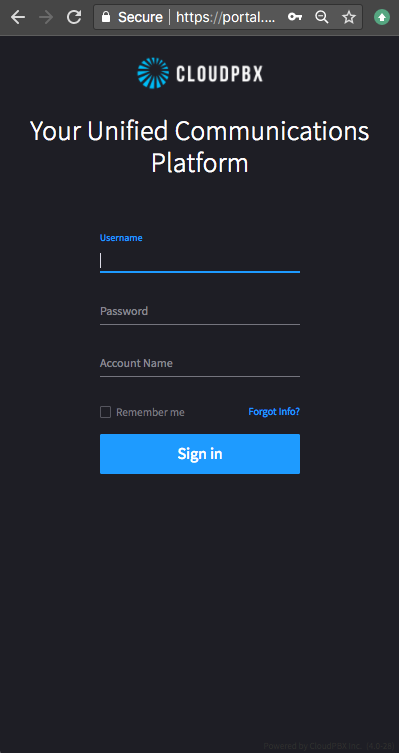
You will arrive at the login page which looks like this,
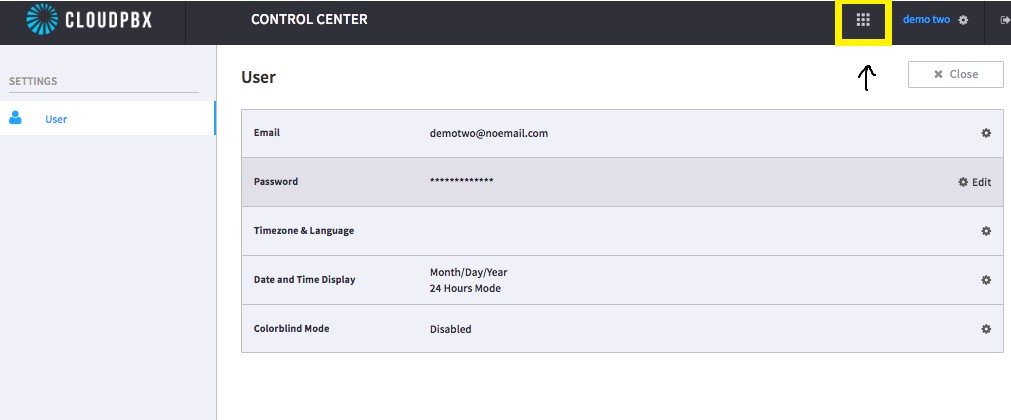
Using your credentials you will log in and arrive at the main "User Portal" dashboard. If you are not already on the "User Portal" dashboard you can access it by clicking the Grid icon as shown below.
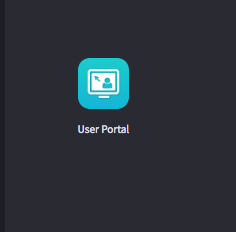
Opening the Grid icon will show a few different apps, the one you will want to select is the one shown below.
There are 4 major components to the user portal:
1 - Voicemails
2 - Call History
3 - Contact List
4 - Settings & Devices
The 'Faxes' portion is not functional at this time; this is a placeholder.
VoiceMail
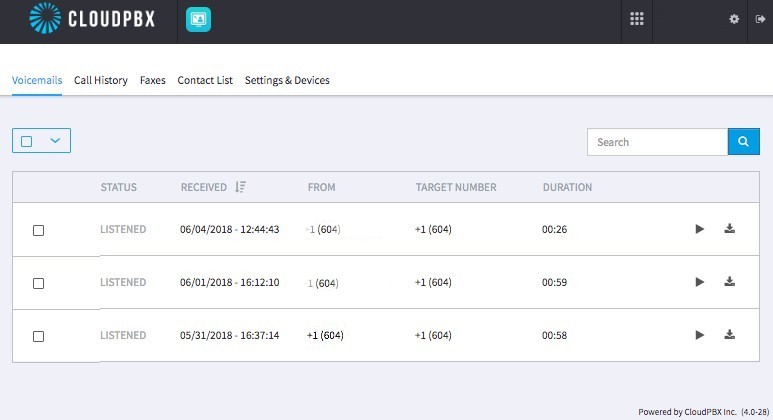
Below you can see the "Voicemails" tab where you will see all the voicemails left by callers. You can still access your voicemails via the phone, however on the portal you have access via the graphical user interface. This is especially helpful for receptionists who seek to delete bulk emails sent to various staff members.
The Voicemail tab will show you the information below. To delete you select the voicemails you want to remove on the left and then pressing the drop menu above them select the option to "Mark as Deleted"
The Call History
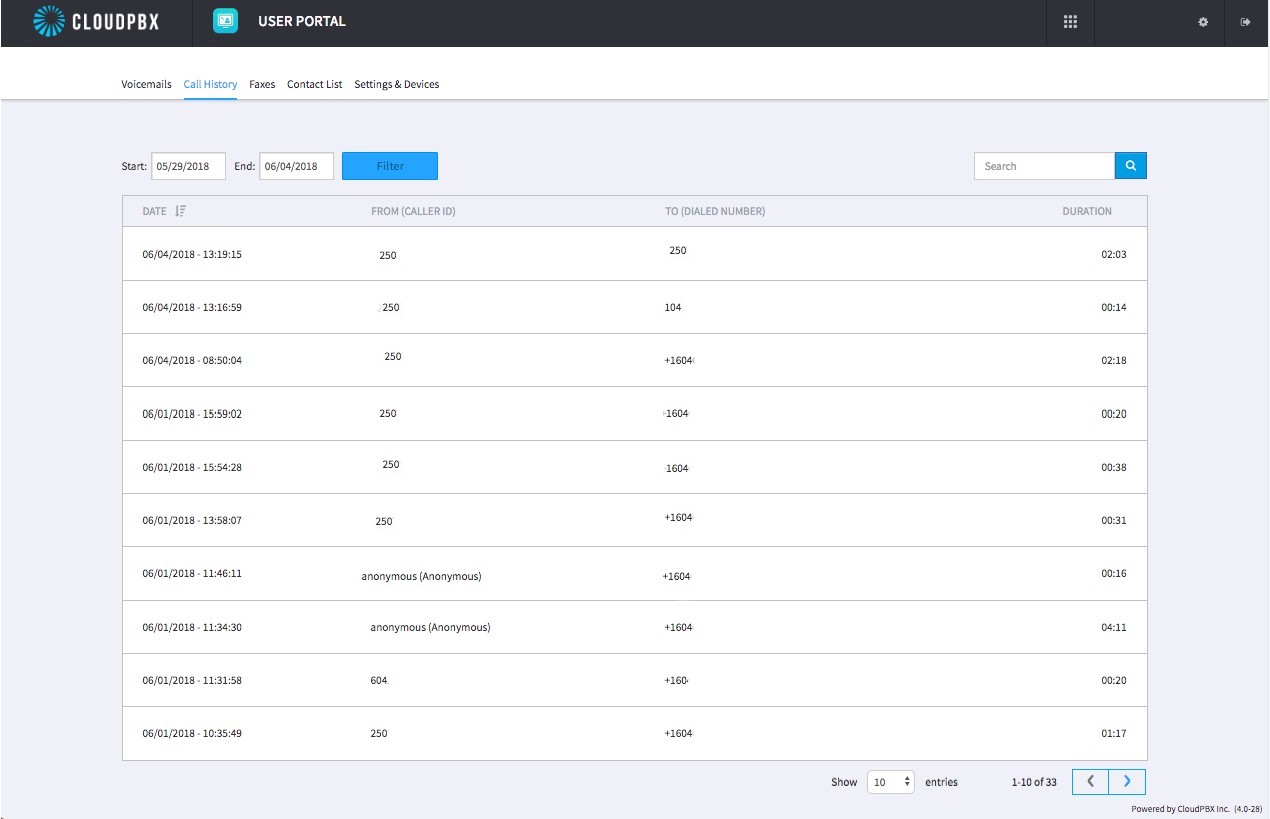
Below you can see the "Call History" tab where you will have a log of all the most recent incoming and outgoing calls, the duration of the call and the date the calls were made. This is helpful if you would like more control in filtering through calls for specific times of day as well as finding phone numbers.
Contact List
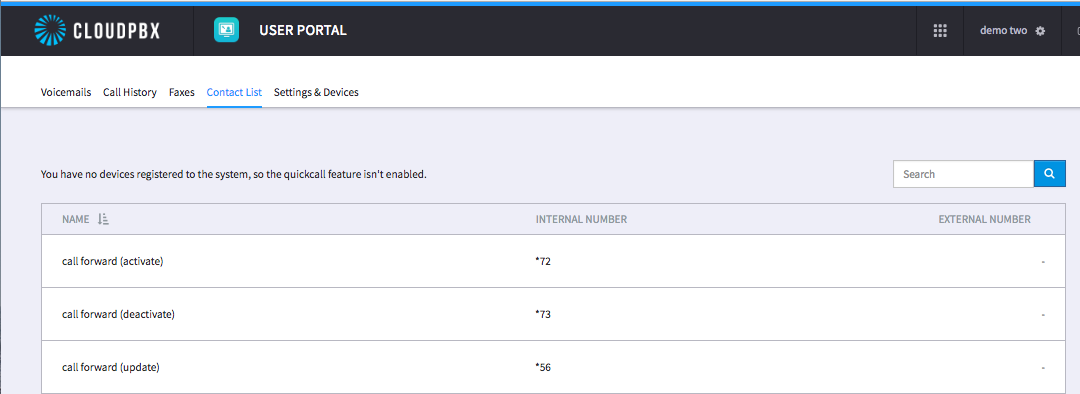
Under contact list you can view the call forwarding numbers as well as the feature code that will activate or deactivate them.
Settings & Devices
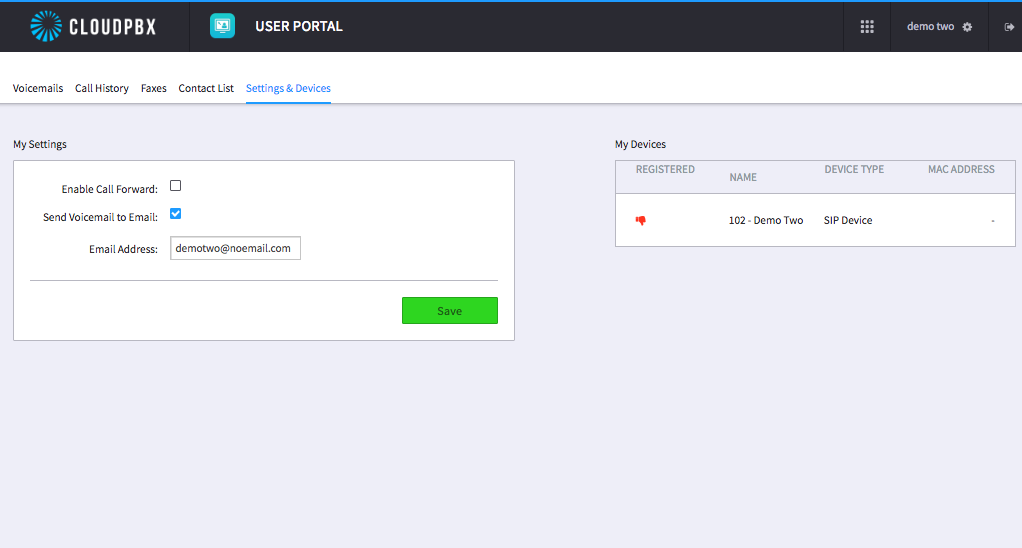
Under "Settings & Devices" you will see the settings for the device on the left pane which will permit enablement of call forwarding, and forwarding voicemails to email for digital access. Here you can enter the email you want the voicemails to be sent. On the right pane you will see which devices these voicemails are correlated to, and if there's more than one you can change those settings as well.
Those are the configuration updates that can be made to personal settings which are available immediately upon user login.
For any other questions or suggestions, please feel free to contact us.
Comments
0 comments
Article is closed for comments.