
When using the VVX phones you can make two types of transfers, blind transfers and attended transfers.
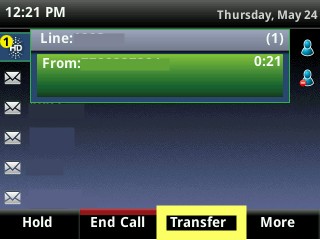
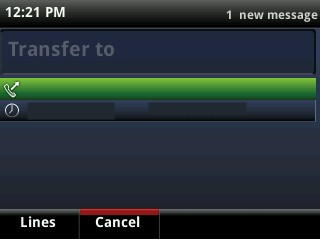
1) Press the 'Transfer' button. The phone will display: 'Transfer to:', and the caller will be put on hold.
2) Enter the number you'd like to transfer to, then 'dial' or '#' if the phone seems to be waiting for more input.
3) The intended receiver's phone will ring. The transfer will be completed when you press the 'Transfer' key again.
- If you'd like to complete the transfer while the phone is ringing, press this key right away to 'drop out' of the call. The callerID is updated at this point, so the 'callee' will know who they are about to speak to.
- If you'd like to introduce the caller to the target, then wait until they answer the call.
Note: the two parties cannot hear each other until you press the 'Transfer' key the second time to complete the transfer.
To perform a 'Blind' transfer, just press the 'Blind' key when it shows up - you'll see it right when you press 'Transfer' the first time to begin the process. Then, when you dial the callee, your phone will 'drop out' of the call immediately and go back to idle.
** For phones that are running firmware version 5.2+, you will need to hold the "transfer" soft key button down during the above step in order to select which transfer type you want to do, rather than pressing 'transfer -> blind' as noted above.
Photos of this process are below:
1) Receive and answer a call, select transfer.
2) Enter the extension of the individual you want to transfer the call to.
3) And press Transfer a second time for the call to be sent.
3) If you want to customize the type of transfer, just hold the transfer button down and select the type of transfer. This window below will appear:
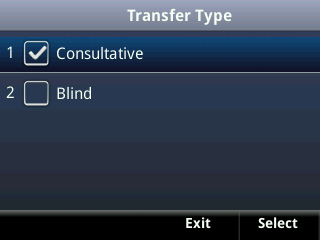
If you select 'Blind', this will cause the transfer to be sent directly without the need for pressing Transfer a second time.
Here is what this process looks like:
4) Enter the extension and press Transfer
5) Press Transfer once and it's sent!
We hope that this has been helpful, if you have any questions or require any assistance please feel free to get in touch with our team.
Comments
0 comments
Article is closed for comments.