
Not to fear! The good news is that we have *never* seen a 'bricked' Aastra phone!
Is the phone already in 'web recovery mode'? If so, and you have the phone's IP, please do the following, starting from step #4. If the phone appears to be broken and needs to enter recovery mode, start from step #1.
It might also be a good idea to check out a working Aastra phone, to view the correct provisioning rules.
1 - Disconnect the Aastra phone from power (or a PoE switch)
2 - Reconnect the power (or the PoE switch cable) and quickly press and hold 1 + #
3 - Hold the keys listed in Step #2 until the phone displays an IP address on the LCD screen
4 - Using a computer on the same subnet as the phone, browse to the IP address displayed on the LCD screen.
** Note - we've noticed that this process will fail with certain web browsers. As of Feb 2015, Firefox / Chrome were best able to render the page properly.
Below is an example of what this page looks like:
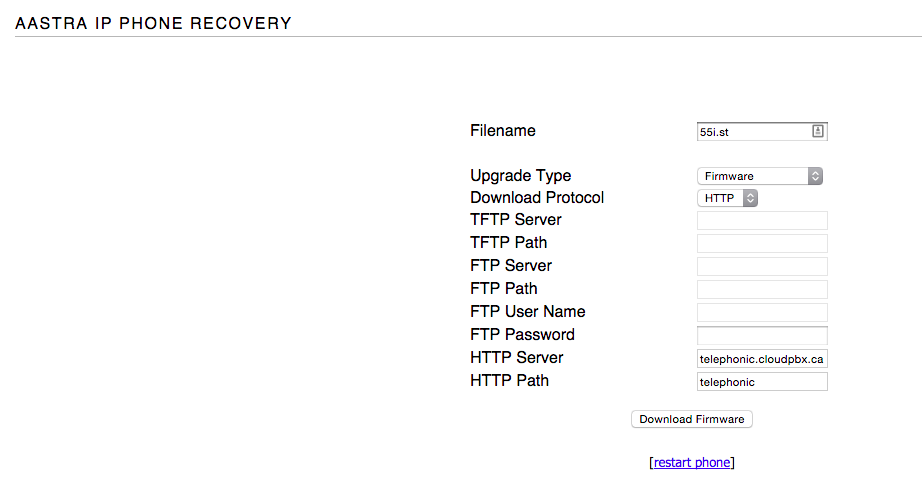
You should see two fields within this page:
Filename:
TFTP Server IP:
In the Filename field, enter the name of the phone's firmware file. Aastra firmware files are named <Model#>.st.
Firmware files are:
9133i.st
9112i.st
480i.st
480i Cordless.st
480i CT.st
51i.st
53i.st
55i.st
57i.st
57iCT.st
In the HTTP Server IP field, enter the location of the firmware on your provisioning server:
yourprovisioningserver.dot.com
* Use whichever protocol your provisioning server is going to expect, of course: tftp, stfp, or http.
5 - Click Download Firmware
The phone make take a few minutes to contact the server, grab firmware, then gather all required configuration files, and finally boot up completely. At this point, you can once again use the phone normally.
6 - NOTE: We have seen several cases where these phones were unable to resolve DNS, so be prepared to use the 'raw IP' rather than the domain name of your provisioning server.
We've attached the official Aastra documentation to this post as well.
Comments
0 comments
Article is closed for comments.