
The user portal received a revamp along with the rest of the CloudPBX portal, when 'version2' was launched.
Here is how you can enable and view the new 'User Portal'.
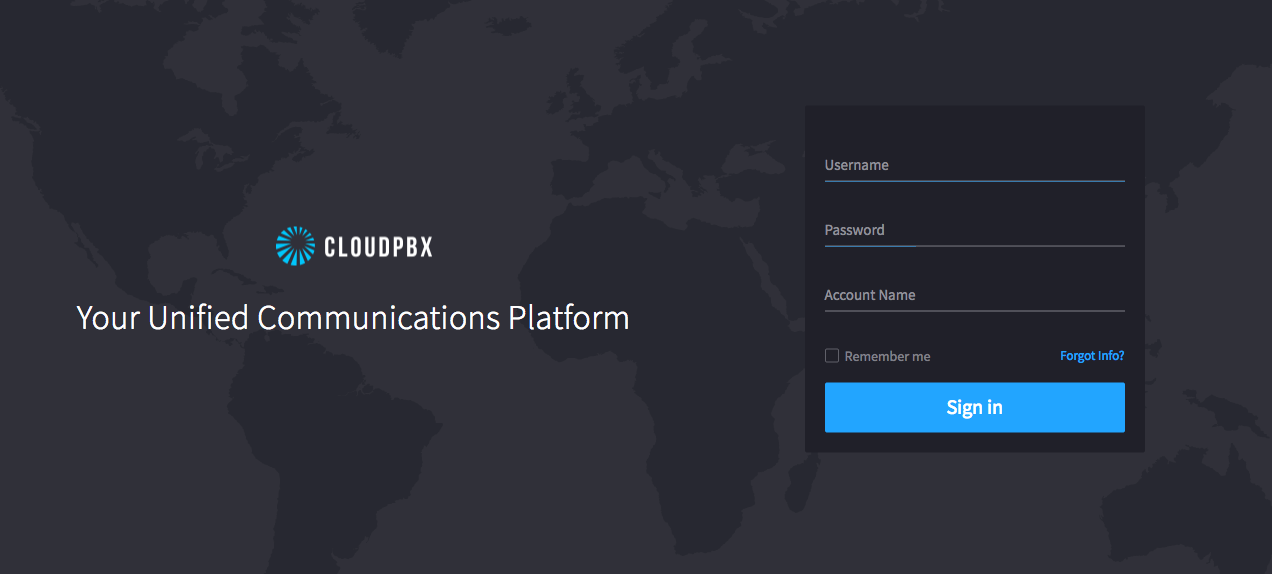
1 - Login to the CloudPBX portal at https://portal.cloudpbx.ca, using your regular credentials.
2 - Once you are logged in, if you aren't automatically viewing the 'Apps' page, please navigate to that page by clicking on the 'Apps' Icon:
3 - Look for the 'App Exchange' button, and click it:
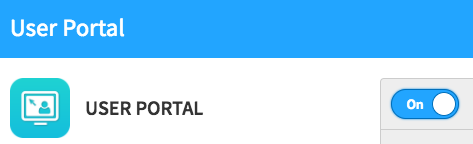
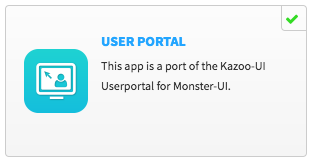
4 - Then, click on 'All apps', and enable the apps you'd like to use by selecting the app and turning it 'on'. In this case, we are wanting to enable the 'User Portal' - so click on that. A green checkmark will appear, signifying that the User Portal is enabled.
5 - Then, to use the app, go back to the main 'Apps' page, and click on 'User Portal' to open it.
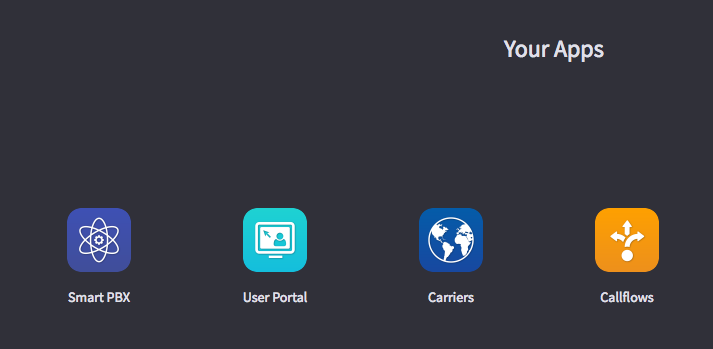
You can click-and-drag any app icon over to the 'Default App' box in order to set that app as the one that will be active when you first log in. Unless you are an 'admin' of the account, you will most likely only have the 'User Portal' available for use.
Comments
0 comments
Article is closed for comments.